
All software needs updates and your IOS device is no different – in order to keep your devices in compliance with TeamHealth’s robust security requirements, follow these instructions to make sure your device is up-to date.
Before installing a software update:
- Ensure your device is powered on, has at least 50% charge, and is plugged in to the charger.
- Connect your device to a stable Wi-Fi connection, such as your home network.
- Make sure your IOS device is backed up.
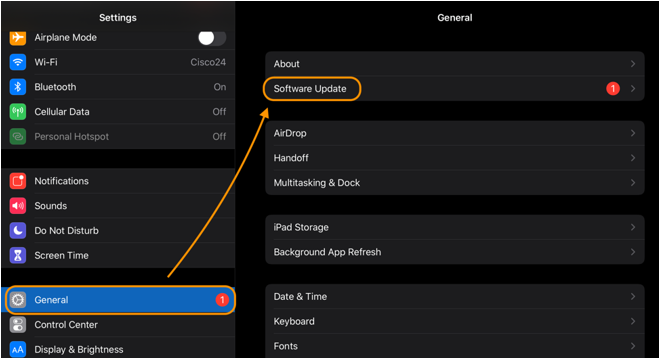
Step 1: Go to Settings.

Step 2: Go to General, then Software Update.
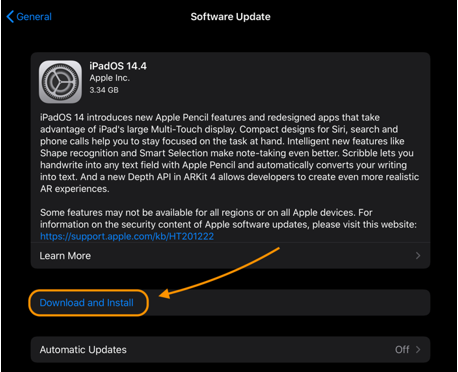
Step 3: Tap on Download and Install.
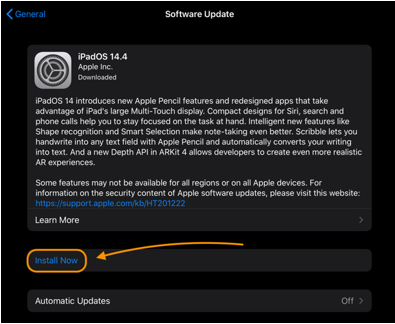
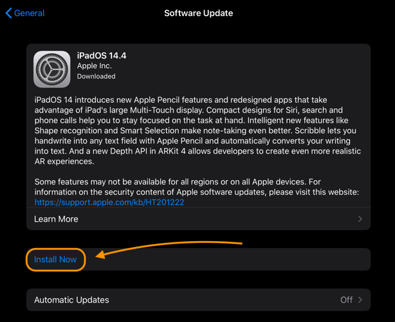
If you have your device set to automatically download updates, it will just say Install Now. If so, skip to step 6.
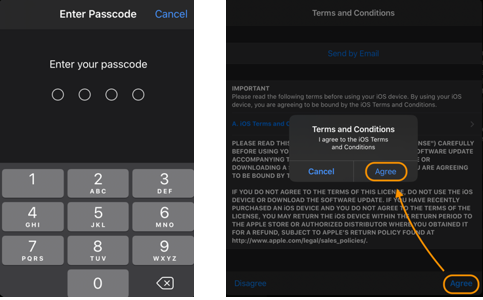
Step 4: If prompted, enter your device PIN and agree to Terms and Conditions.
Step 5: The update will begin to download. This can take several minutes.
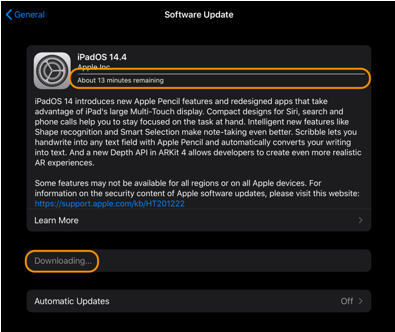
When complete, you may need to tap Install Now.
Step 6: Your device will automatically shut down as the update installs – the screen will then show the Apple logo and a loading bar. Once complete, your device will automatically restart.

Step 7: After restart, you may need to enter your device PIN. To confirm the update installed correctly, repeat Steps 1 and 2 – if you see the below message under Software Update, you’re done!

Questions? Visit help-test.teamhealth.com for more information, updates and useful links. In the event of any technical issues, please contact the Service Desk at 800.678.3171.